Monday, April 25, 2011

How To enable Debuging on SQL server


On the computer that is running the instance of the Database Engine, use the Windows Firewall Control Panel application to specify the following information:
·         Add TCP port 135 to the exceptions list.
·         Add the program sqlservr.exe to the exceptions list. By default, sqlservr.exe is installed in C:\Program Files\Microsoft SQL Server\MSSQL10.InstanceName\MSSQL\Binn, where InstanceName is MSSQLSERVER for the default instance, and the instance name for any named instance.
·         If the domain policy requires network communications to be done through IPsec, you must also add UDP port 4500 and UDP port 500 to the exception list.
Optionally, you can manually configure the program and port exceptions by using Windows Firewall to specify the following information:
·         Add TCP port 135 to the exceptions list.
·         Add program ssms.exe (SQL Server Management Studio) to the exceptions list. By default, ssms.exe is installed in C:\Program Files\Microsoft SQL Server\100\Tools\Binn\VSShell\Common7\IDE.
To add a Windows login account as sysadmin

A user who already has sysadmin privileges must execute the following:
         sp_addsrvrolemember 'Domain\Name', 'sysadmin'

where Domain\Name represents the Windows login account.

Note:       By default, Windows administrators on a computer that is running SQL Server are SQL Server sysadmins on that computer.

Monday, April 18, 2011

MSSQL backup restore method on MSSQL management studio

Following is the one of the Backup restore method on MSSQL server
Open Microsoft SQL Server Management Studio and login with admin privileges.
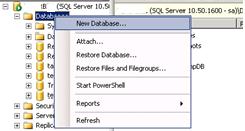
Expand database server name -- > databases -- > Right click select New Database as shown below.


Then it will redirect to the new DB creating window as shown below window, new DB name at database name and click ok (here can see where data files will store under path column).


The new DB will add to the list of databases as shown below.


To restore the backup file Right click on test (new ) database à Tasks à Restore à Database, as shown below


Then it will redirect to restore database-test window as shown below.

       1.Database name
 2. Select From device (need to be chose from where you are going table the backup file)
 3.  By click on browser button select database backup file.
 4.  Then it will add to select the database backup sets to restore section and check the box as show below.
 5.  The click on options.


Then below window will appear
6.       Check the BOX Overwrite the existing database

7.       Select the test database “mdf” file path, By Right clicking on DBàppropertiesàfileàright side plan UNDER database files section under path column “mdf” file can find(or while creating new DB under path column “mdf” file path can be find as above screen in this post)

8.        Select the test database “ldf” file path, By Right clicking on DBàppropertiesàfileàright side plan UNDER database files section under path column ”ldf” file can find(or while creating new DB under path column “ldf” file path can be find as above screen in this post)
        9.   Select recovery state as Leave database ready to use by rolling back uncommitted transaction.


10.       Then click on Ok, then restoring process will start, once restoring complete the completed successfully window will appear click on OK.

Friday, April 1, 2011

how to use Selenium RC.

Wizzard,
For example for java:

1.Download Selenium RC from openqa site.
2.Start any java IDE.
3.Create new project.
4.Add to your project classpath selenium-java-client-driver.jar
5.Record your test to from Selenium IDE and translate it to java code (Selenium IDE has automation translation feature).
6.Look for example tests in \selenium-remote-control-0.9.0 java\source\test\java\com\thoughtworks\selenium
and create your test using examples.
7.Run selenium server from console (You need initialized java environment variable to do this) like: java -jar selenium-server -proxyInjectionMode.
8.Run your test in IDE.
9.Enjoy..

How to install selenium IDE on firefox

You need to:
1. Install Mozilla Firefox first.
2. Go to openqa.org and click on the Selenium IDE link.
3. Click on the latest installable version available and just wait for it to install.
4. You can access Selenium IDE in Mozilla from Tools-> Selenium IDE.

Tuesday, March 29, 2011

Export or import data between MSExcell and MSSQL DB


to upload excell sheet data to db need to give following permission on webserver.

give MS excell permmissions under Administrator tools-->component services --> Mycomputer --> DCOM Config -->Microsoft excell application --> (Right click go to properties --> under security tab select customize permissins and click on Edit button and add ASP.NET user, ISER, IIS_WAN user with full permissions)


and in web.config page add as follows
<system.web>
<identity impersonate="true" userName="administrator" password="Transexpress1"/>
</system.web>

Wednesday, March 23, 2011

VirtualHost Examples: Using the ServerPath directive

This document attempts to answer the commonly-asked questions about setting up virtual hosts.

These scenarios are those involving multiple web sites running on a single server, via name-based or IP-based virtual hosts.

We have a server with two name-based vhosts. In order to match the correct virtual host a client must send the correct Host: header. Old HTTP/1.0 clients do not send such a header and Apache has no clue what vhost the client tried to reach (and serves the request from the primary vhost). To provide as much backward compatibility as possible we create a primary vhost which returns a single page containing links with an URL prefix to the name-based virtual hosts.
##############################################
Server configuration

NameVirtualHost 172.20.30.40

<VirtualHost 172.20.30.40>
# primary vhost
DocumentRoot /www/subdomain
RewriteEngine On
RewriteRule ^/.* /www/subdomain/index.html
# ...
</VirtualHost>

<VirtualHost 172.20.30.40>
DocumentRoot /www/subdomain/sub1
ServerName http://www.sub1.domain.tld/
ServerPath /sub1/
RewriteEngine On
RewriteRule ^(/sub1/.*) /www/subdomain$1
# ...
</VirtualHost>

<VirtualHost 172.20.30.40>
DocumentRoot /www/subdomain/sub2
ServerName http://www.sub2.domain.tld/
ServerPath /sub2/
RewriteEngine On
RewriteRule ^(/sub2/.*) /www/subdomain$1
# ...
</VirtualHost>
##############################################
Due to the ServerPath directive a request to the URL http://www.sub1.domain.tld/sub1/ is always served from the sub1-vhost.
A request to the URL http://www.sub1.domain.tld/ is only served from the sub1-vhost if the client sent a correct Host: header. If no Host: header is sent the client gets the information page from the primary host.
Please note that there is one oddity: A request to http://www.sub2.domain.tld/sub1/ is also served from the sub1-vhost if the client sent no Host: header.
The RewriteRule directives are used to make sure that a client which sent a correct Host: header can use both URL variants, i.e., with or without URL prefix.

VirtualHost Examples: Migrating a name-based vhost to an IP-based vhost

This document attempts to answer the commonly-asked questions about setting up virtual hosts.

These scenarios are those involving multiple web sites running on a single server, via name-based or IP-based virtual hosts.

The name-based vhost with the hostname http://www.example2.org/ (from our name-based example, setup 2) should get its own IP address. To avoid problems with name servers or proxies who cached the old IP address for the name-based vhost we want to provide both variants during a migration phase.
The solution is easy, because we can simply add the new IP address (172.20.30.50) to the VirtualHost directive.
##############################################
Server configuration

Listen 80
ServerName http://www.example1.com/
DocumentRoot /www/example1

NameVirtualHost 172.20.30.40

<VirtualHost 172.20.30.40 172.20.30.50>
DocumentRoot /www/example2
ServerName http://www.example2.org/
# ...
</VirtualHost>

<VirtualHost 172.20.30.40>
DocumentRoot /www/example3
ServerName http://www.example3.net/
ServerAlias *.example3.net
# ...
</VirtualHost>
##############################################
The vhost can now be accessed through the new address (as an IP-based vhost) and through the old address (as a name-based vhost).